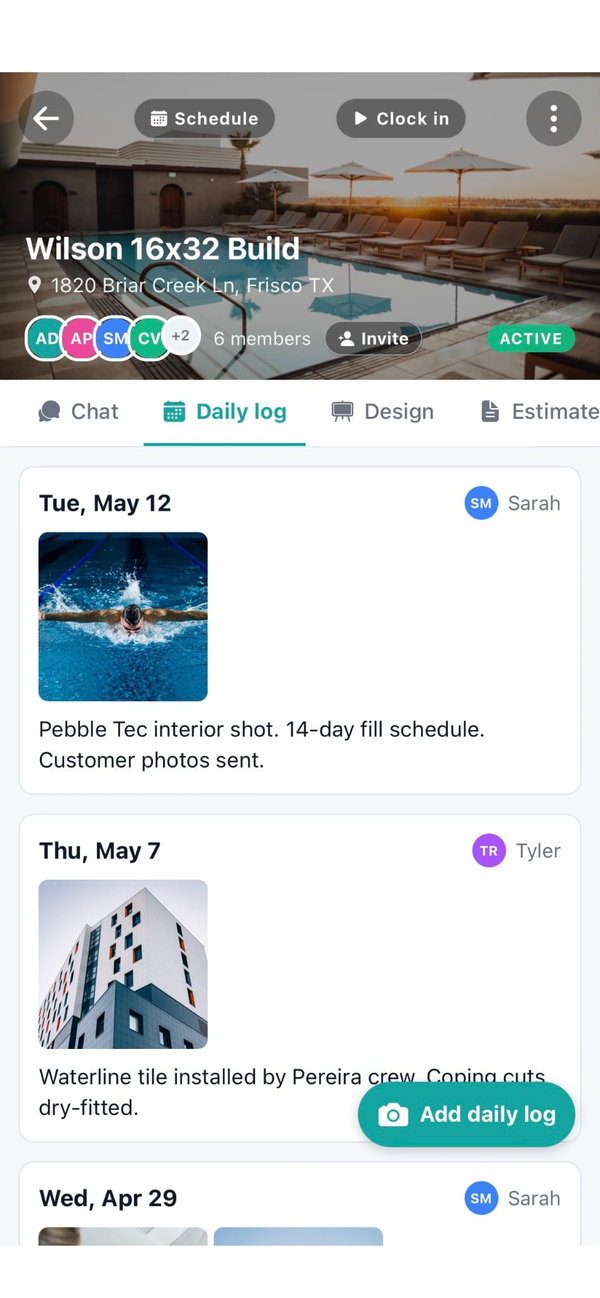
How does Workhand handle construction job site photos?
Photos in Workhand are always attached to something on the job (a daily log entry, a chat message, a punch item, a scanned receipt, or a customer selection). You capture them from the camera or pull from the library, annotate if you want, then save. Every photo is stored in Supabase Storage, scoped private to your company, and searchable through the job it belongs to. No general dumping ground camera roll to comb through six months later.
Can I draw arrows and notes on photos?
Yes. Photo annotations are built in. Draw arrows, circles, freehand marks, or add text on top of the photo before you save it. That turns a plain photo into an unambiguous instruction (arrow at the leaking joint, circle around the tile the homeowner picked, text noting the crack was there June 12). Annotations save into the image so anyone opening it later sees what you meant.
Do photos work offline in the field?
Yes. Photo capture is part of the offline-first field mode. Snap the shot with no signal, add annotations, save. The photo queues on the phone and uploads to Supabase Storage the moment the phone gets connectivity again. This is critical on rural jobs, in concrete slab cellars, or anywhere the crew loses bars mid-morning.
Does the customer see every photo I take?
No. Photos default to private. The customer portal only shows photos the owner explicitly shares to the customer. That means you can document rework, subcontractor issues, or internal PM concerns without the homeowner seeing them. When you want to send the customer a progress album, you flip the share toggle on the specific photos and they show up in the portal.
How is Workhand's photo tool different from CompanyCam or my camera roll?
The camera roll is not tied to jobs, so finding the July photo of the Smith pool takes twenty minutes of scrolling. CompanyCam is a whole separate app your crew has to open. Workhand puts photos inside the daily log, the chat, the punch item, or the receipt where they belong, so photos live in context. The workflow the field crew already uses is the workflow that captures the photos.
Can subs upload photos?
Subs can attach photos to their own daily log entries and to chat messages on jobs they are assigned to. They cannot see or upload to punch items, which are internal closeout, and they cannot see photos on jobs they are not on. This lets a sub document their own scope of work (a plumber photographing the rough-in they finished) without exposing them to the rest of the project.
Where are the photos stored and are they secure?
All photos are stored in Supabase Storage under access rules scoped to your company. Only your team members with permission to see the object the photo is attached to (the log entry, the punch item, the chat thread) can view the photo. Nothing is public. Nothing is shared to a general marketing feed. The customer portal is the only external surface and even that only shows photos you have marked shareable.
Can I do before-during-after photos on a renovation?
Yes. Since every photo is attached to a daily log entry with a date, the before-during-after story is the chronological log itself. Attach the before photos on day one. Attach the during photos every log entry after. Attach the finished shots at closeout. When the customer asks, or when marketing wants an album, you pull the sequence right off the job log.